
Write a draft article or update an existing one in your project's help centre content. You can create the article, edit the title and body, add structured blocks, and save your changes as a new revision.
Step by step
- Go to Project → Content → Articles.
- Click New article. This button appears only when no article is open. If an article is already open, use Collection actions → Create article on the collection instead.
- Enter the Title.
- Click Create.
- Edit the title inline at the top of the editor if you need to rename the article.
- Write the article body in Rich or Markdown.
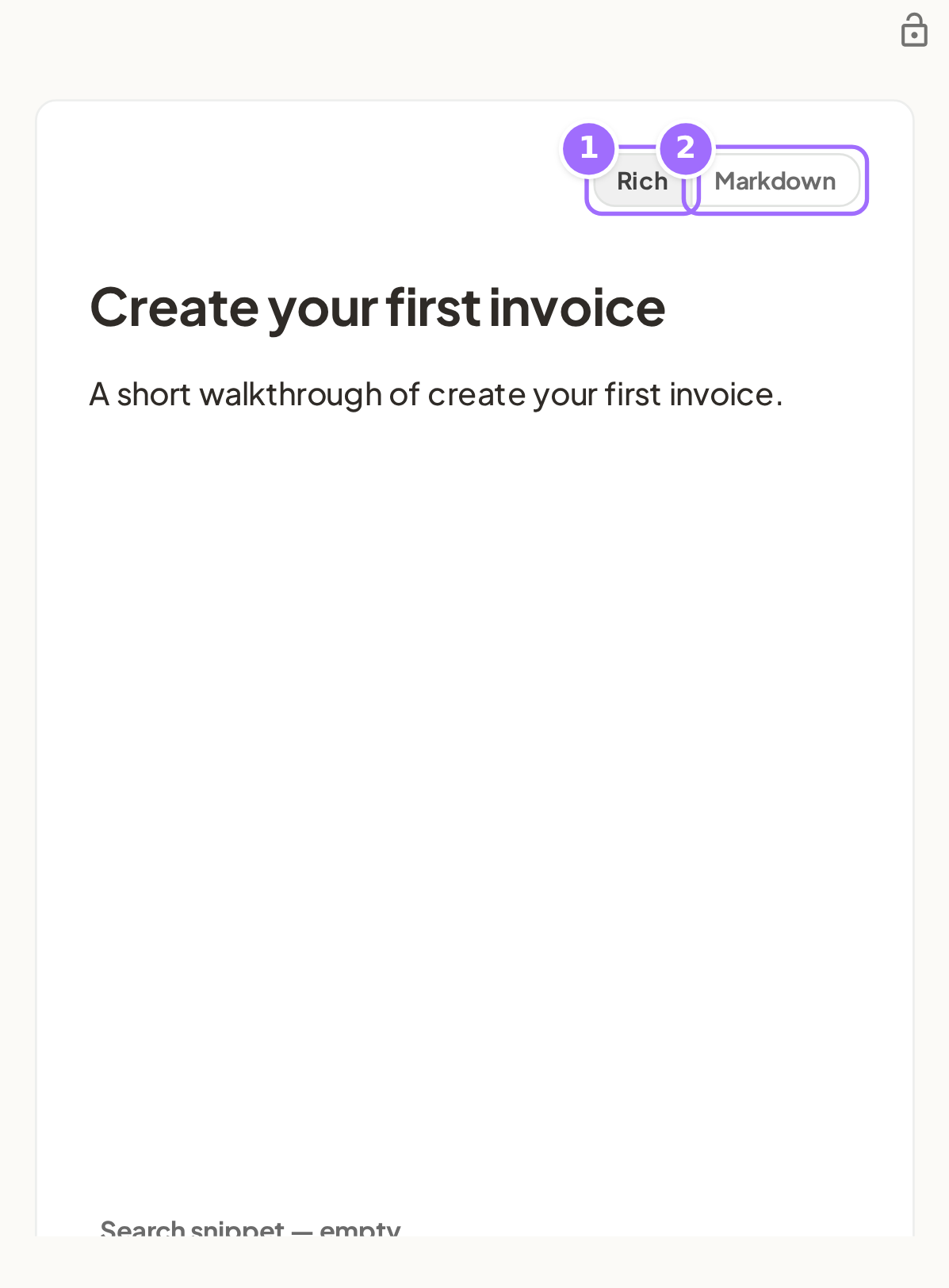

- Type / to insert a block, then choose the content you want to add.
- Select text to apply Bold, Code, or Link formatting.
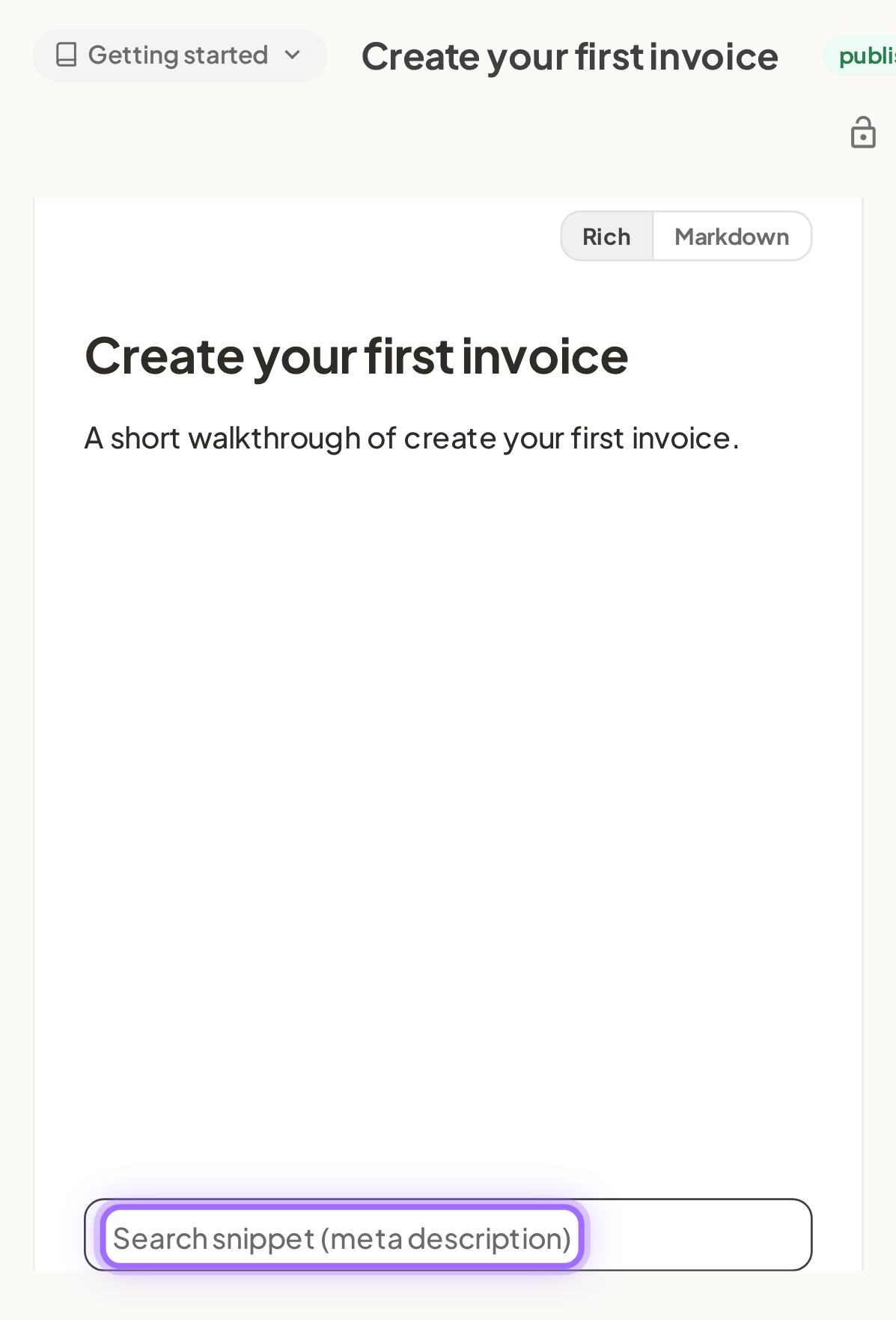
- Click Search snippet if you want to add a meta description for search results.
- Enter What changed? (optional — shown in history) if you want to label this revision.
- Click Save.

Good to know
What happens if I switch between Rich and Markdown? Your changes stay in place. Both modes edit the same article text.
Does Ellie autosave while I write? No. Changes stay in the editor until you click Save. When you have unsaved changes, an unsaved changes chip appears and the header shows Discard and Save. There is no leave-page warning.
What does Discard do? Discard resets the title, body, search snippet, and change note to the last saved version.
What happens when I save? Saving creates a new revision authored by you. After saving, Ellie shows Saved — recorded as a new revision.
If the article is already published, do I need to publish it again after editing? No. Saving changes to a published article updates the live help centre immediately.
How long can the search snippet be? It stops at 320 characters. After 155 characters, Ellie shows a note because search engines usually truncate around that length.
What can I insert with /?** You can insert:
- Basic: Heading, Subheading, Bulleted list, Numbered list, Code block, Divider
- Media: Screenshot, Image, Video
- Callouts: Info callout, Warning callout, Success callout, Tip callout, Error callout
Are there formatting limits in the editor? Yes. Only heading levels 1–3 exist. Italic, strikethrough, underline, and general blockquotes are not available.
Can I add a table from the Rich editor? No. The Rich editor can edit existing tables, but there is no insert-table item in the / menu.
Which video links are supported? Only YouTube, Vimeo, and Loom links work. Any other link shows Only YouTube, Vimeo and Loom links are supported.
What if I clear the title completely? A blank title is ignored when you save, so clearing only the title results in a nothing to update error instead of saving an empty title.