
Use Features to choose which code-derived product features should be included in your documentation. You can hide features you do not want documented, review how Ellie classified them, and adjust their audience or release status when needed.
Before you start
This article covers the Features view, where you decide coverage for product features. To organise articles and sections after that, see Tour of the Content page.
Step by step
- Open your project, then go to Features.
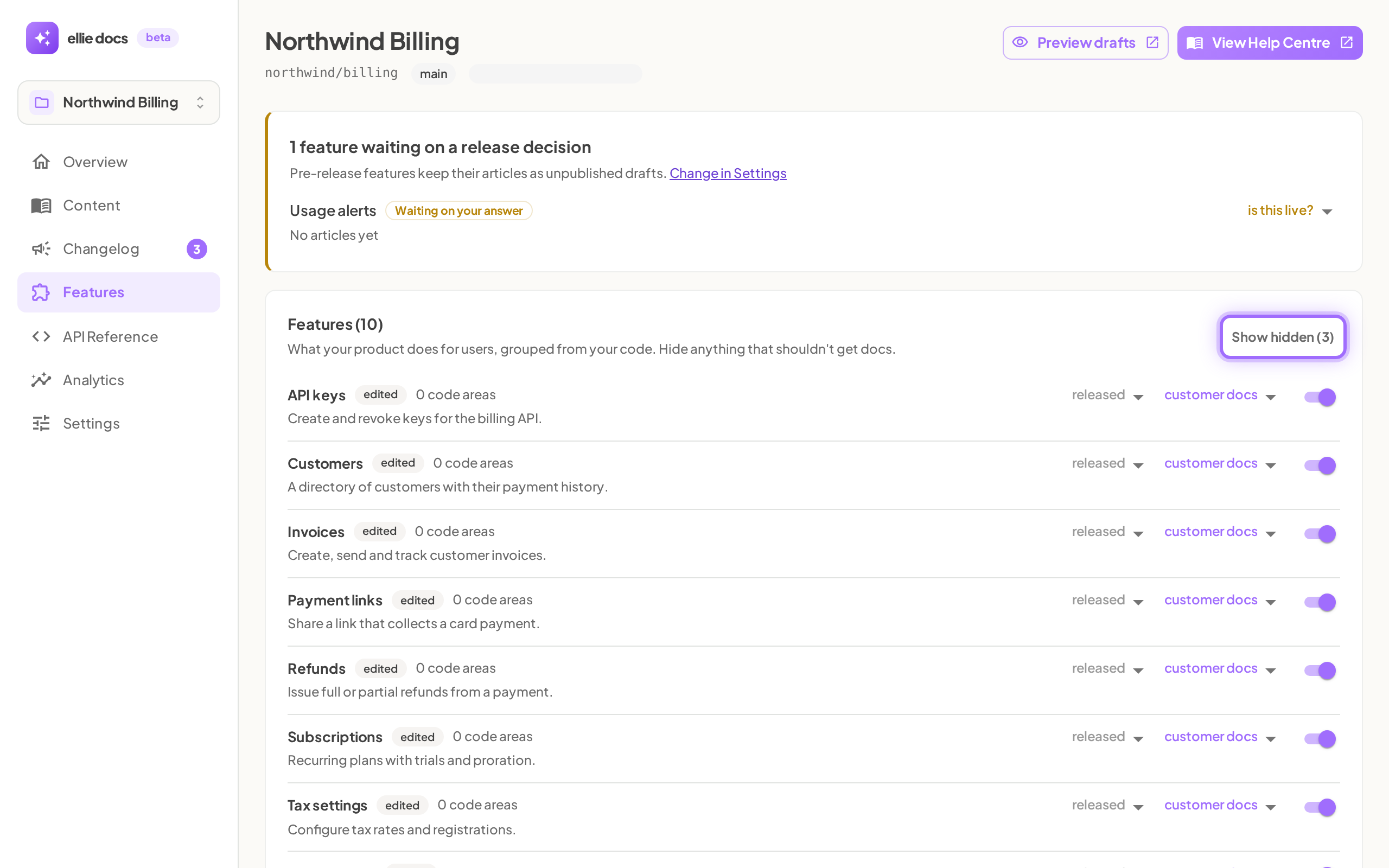
- Review each feature row. Each row includes the feature name, any edited or flag: ... chips, a code-area count, a short summary, a release-status dropdown, an audience dropdown, and an on/off switch.
- Use the on/off switch to decide whether the feature is included in docs. When the switch is on, its tooltip is Included in docs. When the switch is off, its tooltip is Hidden from docs.
- If you want to review features you already hid, click Show hidden (N).
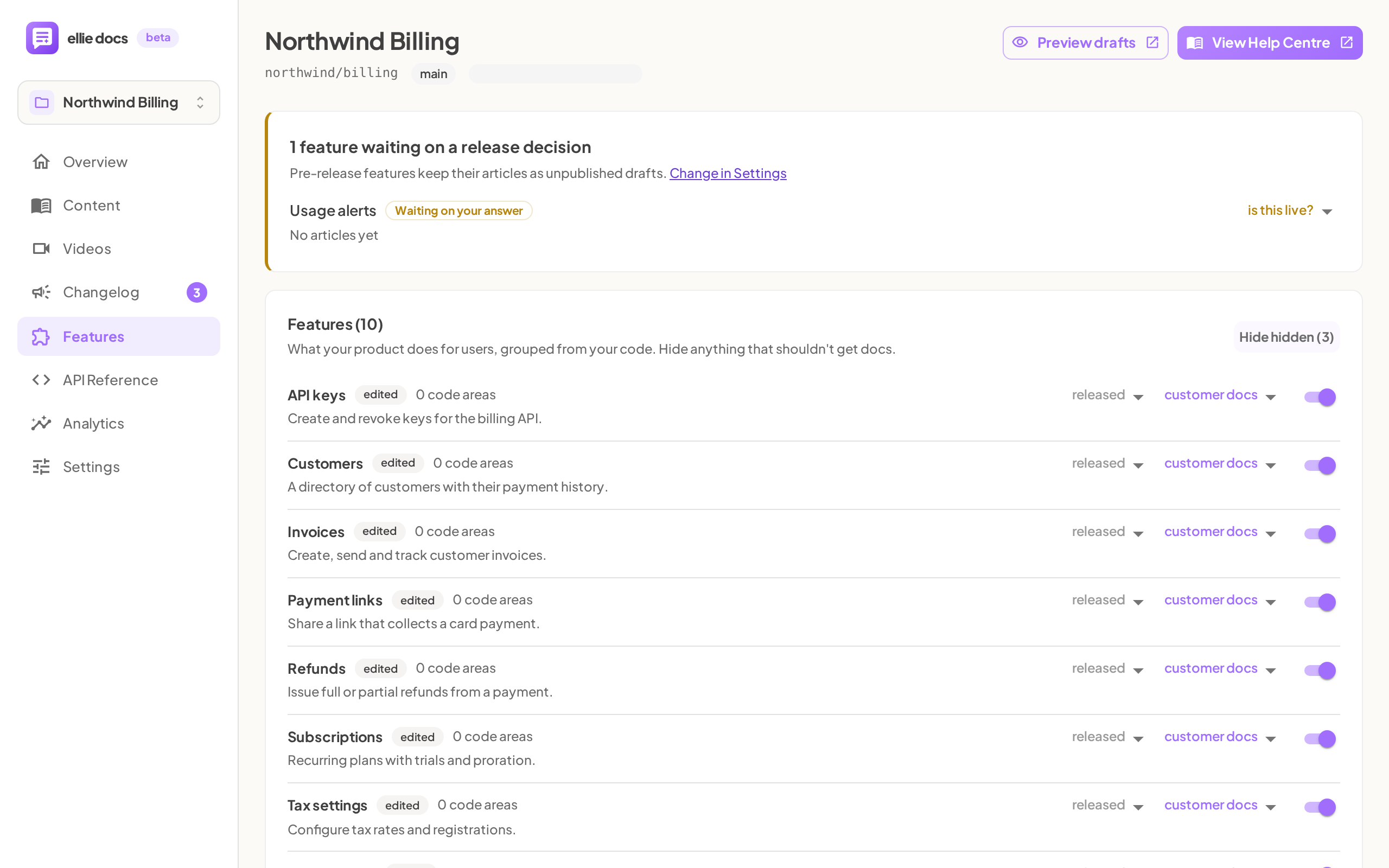
- Change the Audience dropdown if the feature should be treated differently from Ellie’s automatic classification. The available options are customer docs, internal only, and no docs.
- Change the release-status dropdown if the feature is not simply live for customers. Available options include released, rolling out, pre-release, and internal only. Some flagged features may also show is this live? until you answer that question.
- Switch a hidden feature back on if you want it included again. Hidden features return to the main list when you restore them.


Good to know
What does edited mean?
It means you changed that feature by hand. After that, Ellie keeps your choice instead of overwriting it during re-analysis.
What happens if I mark a feature as pre-release?
Its articles may be held back from normal publishing. Depending on your pre-release setting, they are either kept as drafts or published with a label.
Can changing release status unpublish articles?
Yes. Marking a feature as pre-release or internal only can move already published articles back to draft immediately. If that happens, republish them from Content when the feature is ready.