
Use the Appearance tab in your project to update your help centre's name, logo, accent colour, footer badge, and home-page quick links. You'll also see exactly what Ellie can and cannot be themed.
What you can customise
Under Content → Appearance, there are two cards:
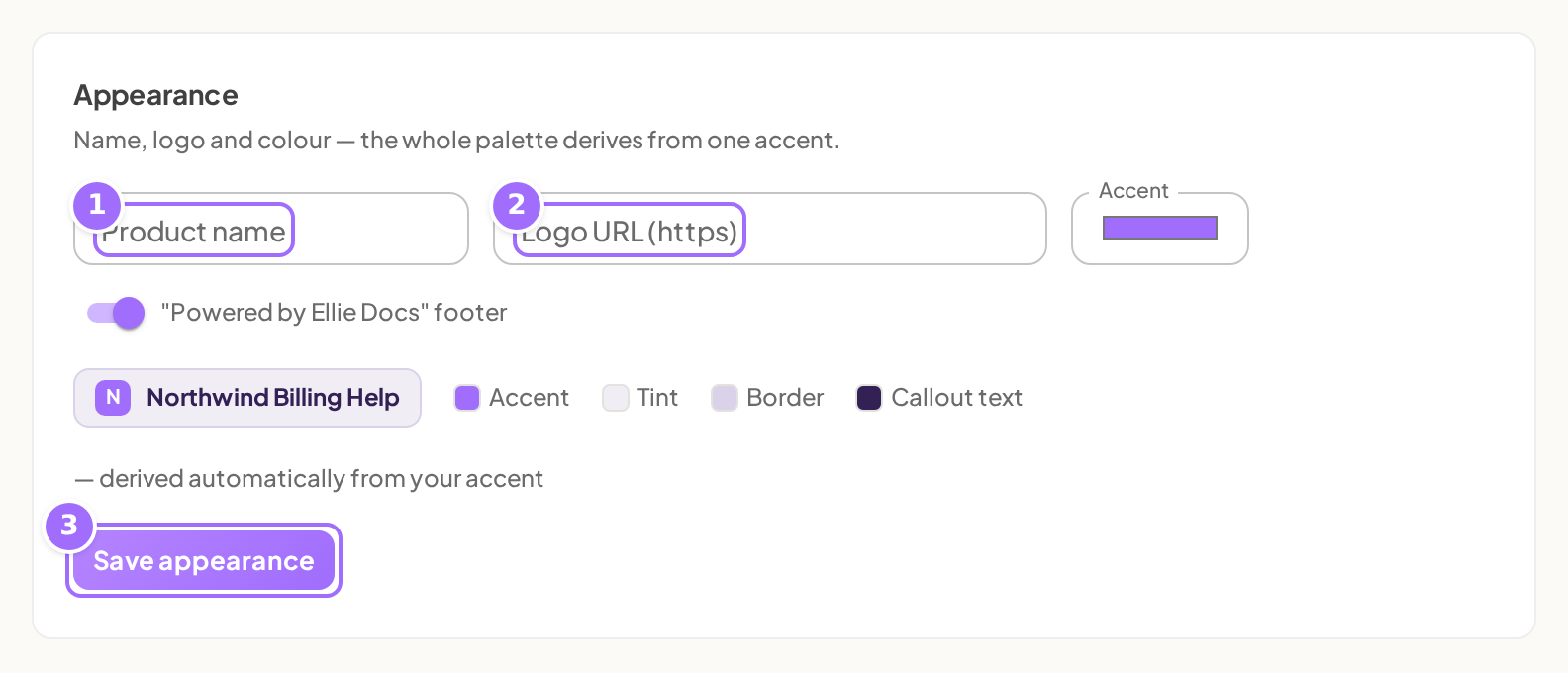
- Appearance for your help centre's name, logo, colour, and "Powered by Ellie Docs" footer
- Navigation for Home quick links on the help-centre home page
There are no controls for fonts, header or footer layout, templates, dark mode, or custom CSS.
Step by step
Change your help centre name, logo, accent, or footer badge
- Open your project, then go to Content → Appearance.
- In the Appearance card, enter a Product name if you want readers to see a name different from the project name.
- Enter a Logo URL (https) if you want to show a hosted image instead of the default letter tile.
- Choose an Accent colour.
- Turn "Powered by Ellie Docs" footer on or off.
- Click Save appearance.

Add or update home quick links
- Go to Content → Appearance.
- In the Navigation card, find Home quick links.
- Click + Add quick link.
- Choose an article in Pick an article….
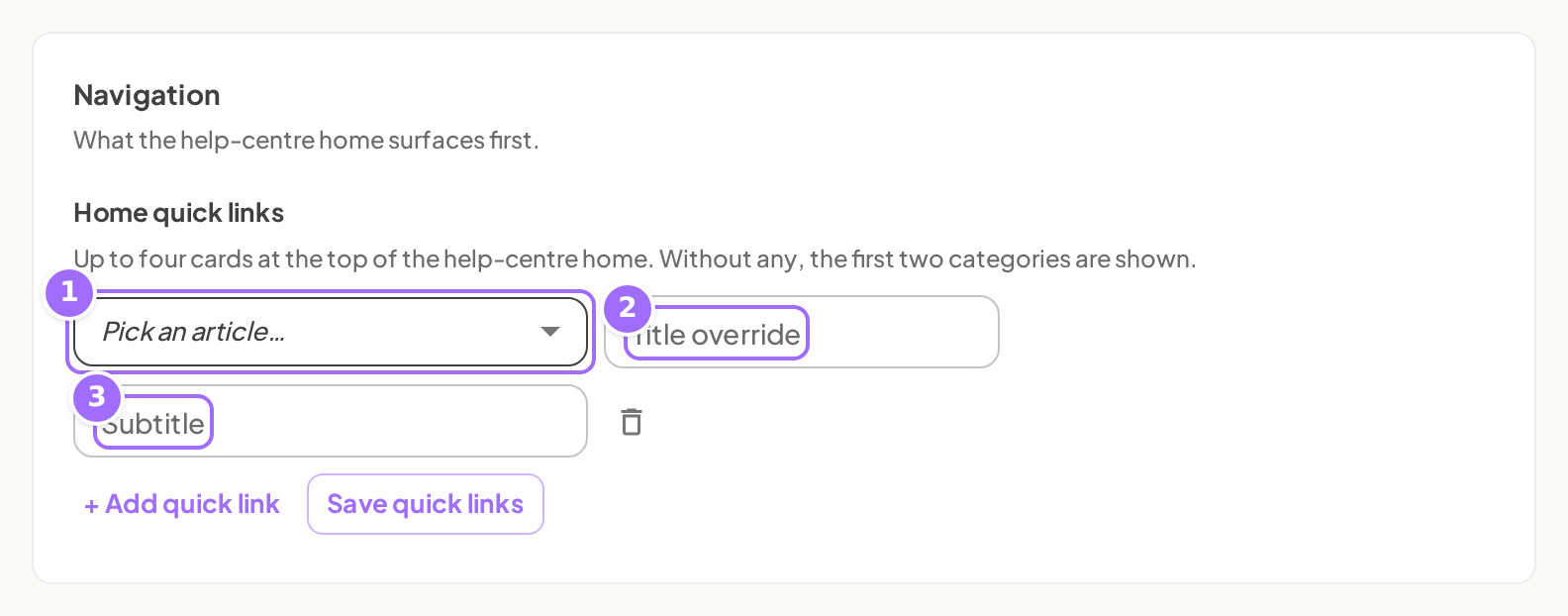
- Enter a Title override if you want a different card title.
- Enter a Subtitle if you want custom supporting text.
- Repeat to add more links, up to four.
- Click Save quick links.

Good to know
What happens if I leave the product name blank? The project name is used instead. Empty Product name clears your custom setting.
What format does the logo URL need to use? Logo URL (https) must start with https://. If it does not, saving fails with logoUrl must be an https URL. If you leave it blank, readers see a coloured square with the first letter of the product name instead.
What format does the accent colour need to use? Use a hex colour such as #7c3aed. If the value is invalid, saving fails with accentColor must be a hex color like #7c3aed. If you do not change it, Ellie still saves the accent currently shown.
What feedback do I get when I save appearance settings? The button changes to Saving… while the save is in progress. A successful save shows Appearance saved. If saving fails, the error appears in a red banner.
Can I hide the "Powered by Ellie Docs" footer on any plan? No. On Free, the switch shows Available on Starter and saving with the footer turned off fails with Removing the Ellie Docs badge needs the Starter plan. Starter, Growth, and Scale can hide it. New workspaces start on a 14-day Growth trial, so you can hide it during the trial. If the workspace later falls back to Free, the badge appears again on public pages. Turning it back on is always allowed.
How do quick links work on the home page? You can add up to four Home quick links. After you add four, + Add quick link disappears. Pick an article… only lists published articles in the public help centre. If you leave Subtitle blank, the card uses the article's meta description or its section name. If you add no quick links, the home page shows the first two categories as cards instead.
Do appearance changes affect other settings? No. Each card saves only its own settings, so Save appearance does not overwrite quick links or contact settings.