
Use these steps when Ellie cannot finish reading your repo, cannot sign in to your app, or leaves screenshots blank, failed or on the wrong screen. You'll re-run the right step and, if needed, repair individual screenshots from the article editor.
Step by step
- Open Projects and select your project.
- If you set up with GitHub and onboarding stopped during analysis, open Onboarding. The step bar for the GitHub path reads Start, Connect, Your docs, Understand, App access, Write docs. Go to Understand.
- Click Retry.
- If GitHub access is the problem, add the missing repository and retry analysis.
- If screenshots are missing across the project, open Project → Overview.
- If Needs attention says articles are missing screenshots, click Capture screenshots. You can also use the Pipeline card row Capture screenshots and click Recapture screenshots.
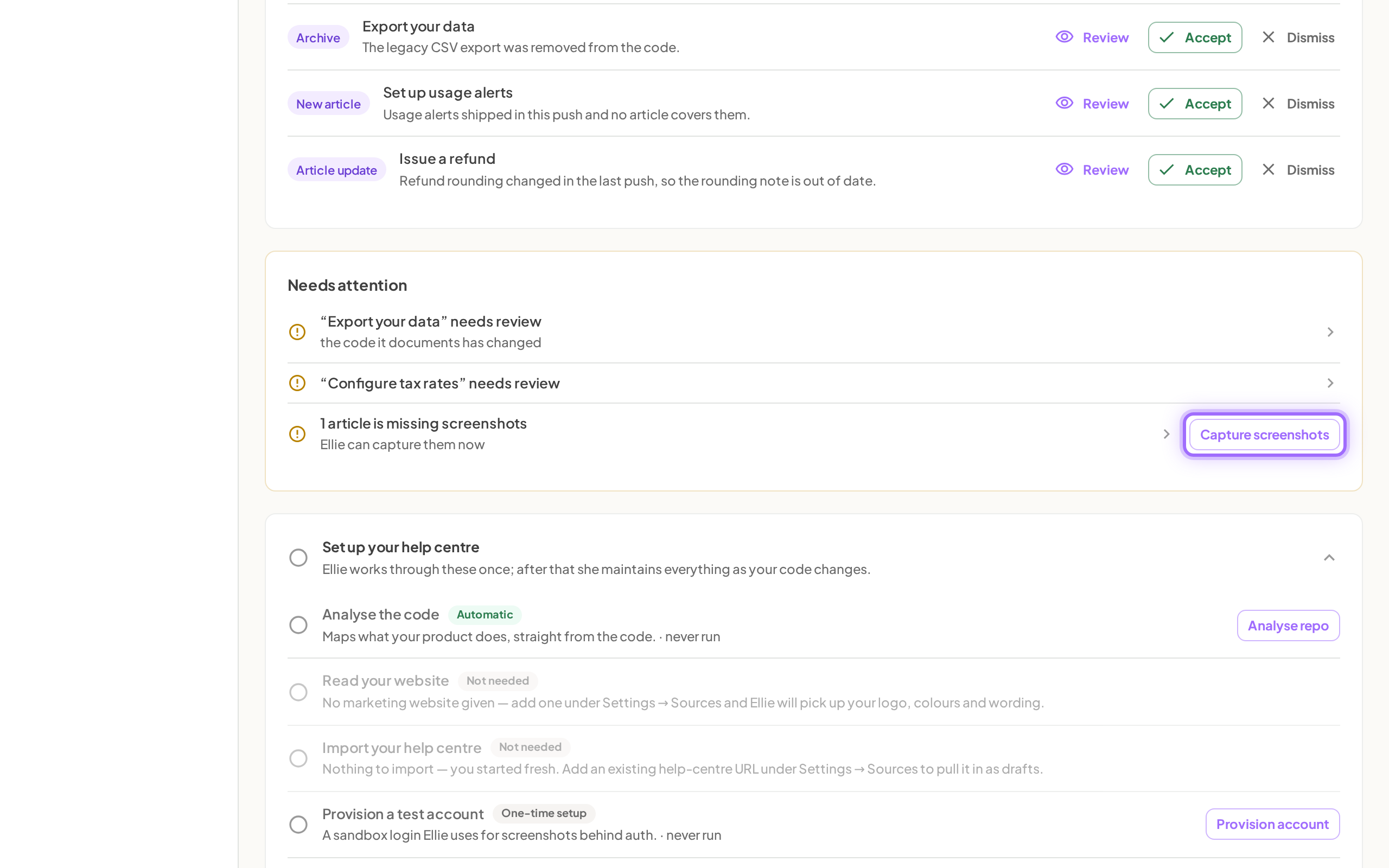
- If analysis failed or the feature list looks wrong, use the Pipeline card to run Analyse repo or Re-analyse repo.
- If Project → Overview shows Ellie couldn’t sign in to your app for screenshots. or Ellie’s test sign-in needs verifying., run Provision account or Re-provision account.
- If screenshots look empty because test data is missing, run Seed data or Re-seed data from Project → Overview or Project → Settings → Automation → Sample data.
- To fix one screenshot, open Project → Content → Articles and select the article.
- In Screenshots (captured/total), click Retry… for a failed screenshot or Recapture… for any other screenshot.
- Add guidance if Ellie needs help reaching the right screen, then click Retry with guidance or Retry.

Good to know
What analysis errors can I recover from with Retry? You can retry when Understand shows Something went wrong. Common messages include This step took too long, so we stopped it., This step was interrupted on our side., and Ellie couldn’t access that repository — check the Ellie Docs GitHub App has access to it.
How do I know whether repo access is the issue? If the GitHub connection has no granted repos, the list shows No repositories granted yet. If connecting GitHub fails, you may also see We couldn’t finish connecting GitHub — click Connect GitHub to try again. or Could not reach GitHub just now — try again in a moment.
What screenshot statuses should I watch for? The article editor uses captured, pending, stale, and failed. During a retry, Ellie shows Recapturing — this usually takes a few minutes.
When should I use guidance or Use anyway? Add guidance when Ellie reaches the wrong place or cannot complete the flow on its own. Use anyway is only available when Ellie captured a frame but rejected it during checking. If Ellie gave up or captured a blank frame, retry with guidance instead.
Why are some screens still missing in live-app mode? In Use my live app, the app URL must be a full http(s) URL. Ellie is read-only there, so screens behind a paywall are skipped unless the account you provide already has the required plan, credits, or quota.
My screenshots show a login page or are blank. What should I do? On Project → Overview, look for Ellie couldn’t sign in to your app for screenshots. or Ellie’s test sign-in needs verifying. Run Provision account or Re-provision account, then Recapture screenshots. In live-app mode, check the email and password you gave Ellie still work.
A screenshot shows the wrong screen. What should I do? Open the article under Project → Content → Articles, click Recapture… on that screenshot and tell Ellie how to reach the right screen, then click Retry with guidance. For a step-by-step guide, see Fix a blank, wrong or missing screenshot (retake or replace).
A screenshot is missing from the article. What should I do? On Project → Overview, if Needs attention says articles are missing screenshots, click Capture screenshots. You can also upload your own image in the article.