
Use article statuses to understand what is live in your help centre, publish drafts when they are ready, and remove published articles from readers by unpublishing or archiving them. This is for anyone who manages documentation in a project.
Understand article statuses
The status chip beside the article title shows the article's current publishing state. It does not show unsaved edits; that is tracked separately by the unsaved changes chip.
- published: visible to readers in the public help centre.
- draft: not visible to readers. New articles start here.
- needs review: not visible to readers. Ellie uses this when an article needs human review before it should go live.
- stale: not visible to readers. This means the code the article documents has changed.
- archived: removed from the public help centre and from preview, and Ellie no longer maintains it. You can restore it as a draft or delete it permanently.
Only published articles are visible in the public help centre. Internal docs are never shown there.
Step by step
Publish a single article
- Go to Project → Content → Articles.
- Select the article in the left pane.
- Save your edits if the article shows unsaved changes.
- Click Publish.
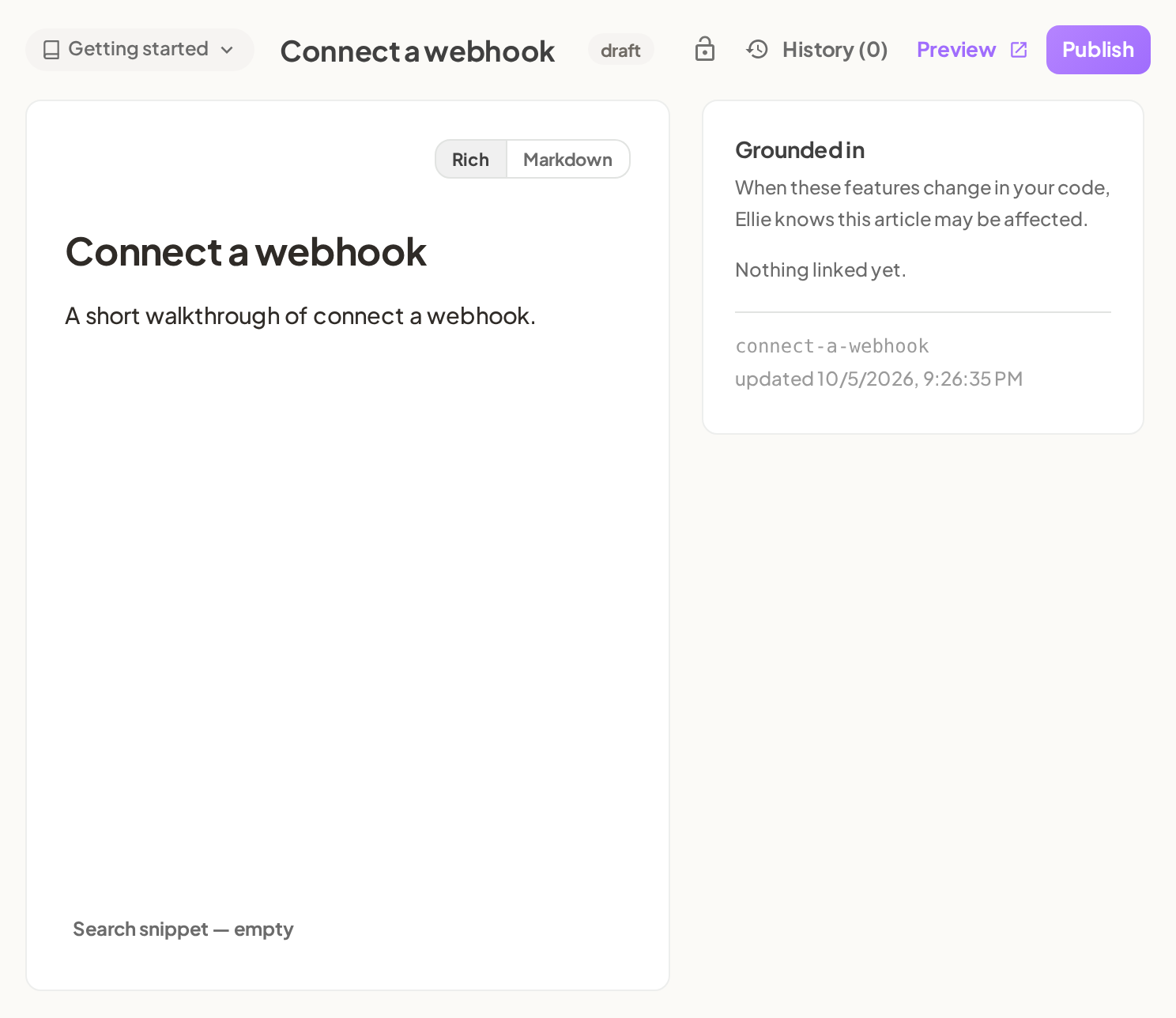

After publishing, Ellie shows Published — now live in the help centre.
Unpublish a published article
- Go to Project → Content → Articles.
- Select a published article.
- Click Unpublish.
After unpublishing, Ellie shows Unpublished — hidden from the help centre.
Archive an article
- Go to Project → Content → Articles.
- Select the article.
- If it shows unsaved changes, save first. The Archive icon is hidden while there are unsaved changes.
- Click the Archive icon in the editor header, next to History.
- If the article is published, confirm in the Archive "<article title>"? dialog by clicking Archive. The dialog says: It comes off your live help centre straight away and links to it will stop working. You can restore it as a draft later.
After archiving, Ellie shows Archived — hidden from the help centre and from Ellie's maintenance. Find it under Archived in the tree.
Restore or delete an archived article
Archived articles are listed under Archived (N) at the foot of the content tree. Open one and click Restore to bring it back as a draft. It never goes straight back to published, so publish it afterwards. Ellie shows Restored as a draft. Publish it when it's ready. To remove it for good, click Delete permanently and confirm. This deletes the article, its revision history, screenshots and uploaded images, and it can't be undone. In the tree you can also use the restore and delete icons on a row, or Delete all next to Archived (N).
Publish all draft articles
- Go to Project → Content → Articles.
- In the left pane, go to the foot of the content tree.
- Click Publish all drafts (N).
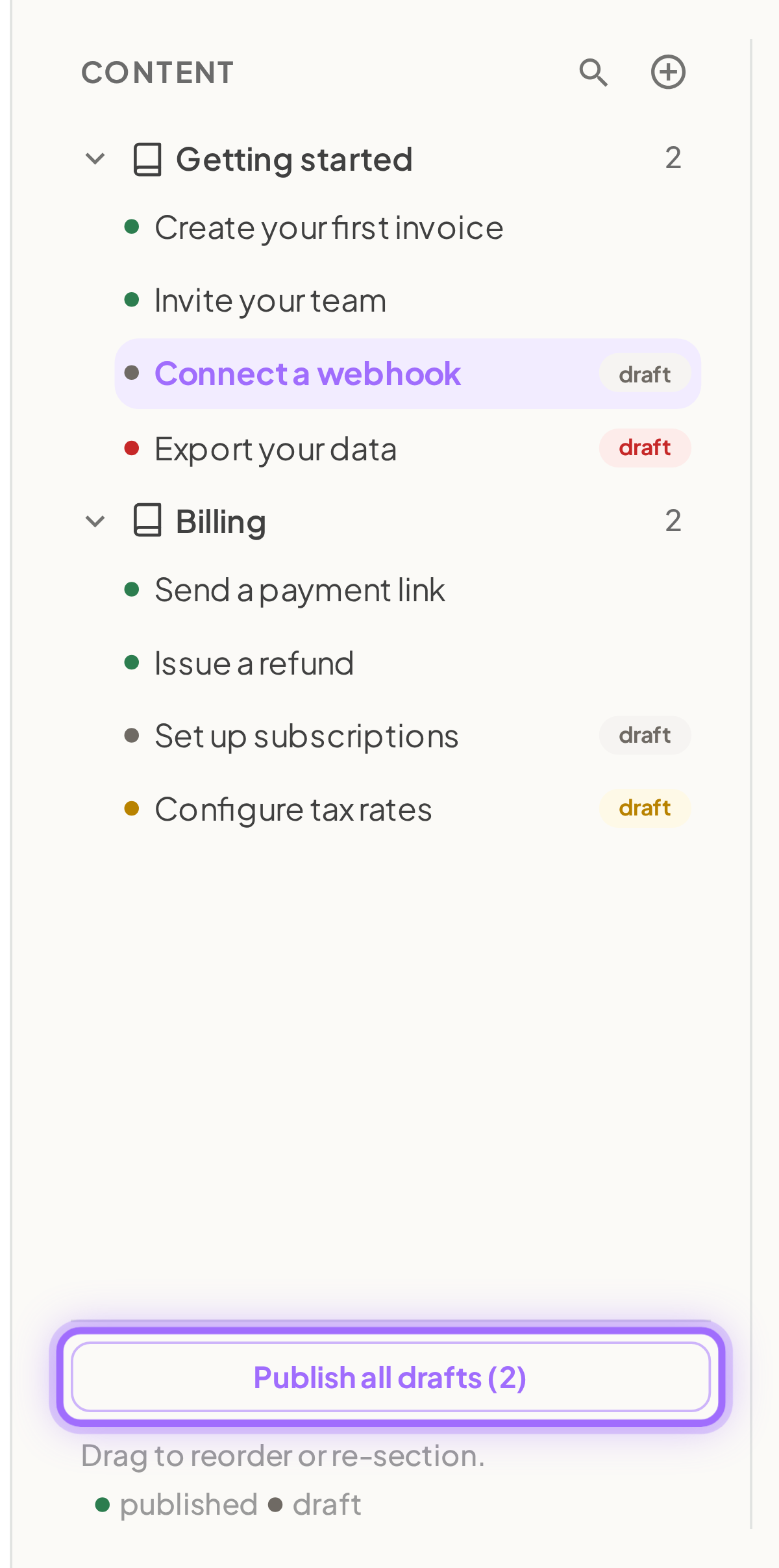

This publishes every article in draft status in the project.
Preview unpublished articles
- Go to Project → Content → Articles.
- Open an unpublished article and click Preview.
The preview opens in a new tab and includes unpublished articles for that project.
Good to know
What can readers see in the public help centre? Only published articles. draft, needs review, stale, and archived articles are not public.
Can I publish an article that says needs review or stale? Yes. Publish moves any non-published article to published. Manual publishing does not block on quality checks, screenshot gaps, or lint findings.
What does Publish all drafts include? Only articles in draft status. It does not publish needs review, stale, or archived articles.
How does archiving work? Click the Archive icon in the editor header. A published article asks you to confirm first. The article leaves the public help centre immediately, and you can restore it as a draft later from the Archived section of the content tree.
Can I delete an article instead of archiving it? Draft and archived articles can be permanently deleted. A published article must be archived or unpublished first.
What should I know before sharing a preview link? Anyone with a live preview link can read your unpublished articles for that project. Preview links expire after 12 hours. If a link has expired, the preview page says Preview link expired and you need to open a new preview from the project again.
What happens to links if I unpublish an article? Links to that article from other published articles are shown to readers as plain text instead of links.