
Use Settings to update your workspace details, manage members and invites, review billing, set up AI tools, create API keys, and connect GitHub. This reference is for owners, admins, and members who need to know which controls are available on each tab.
Organisation
Go to Settings → Organisation.

| Setting | What you can do |
|---|---|
| Workspace name | Owners and admins can edit the workspace name and save it. Members can view it but cannot edit it. |
| Slug | View the workspace slug. It is read-only here. Helper text: Used in your help centre URL. |
| Plan | View the current plan in a chip such as Plan: Growth or Plan: Growth trial. |
| Member count | View the current number of members in a chip such as 3 members. |
Rename the workspace
- Open Settings → Organisation.
- Edit Workspace name.
- Click Save.
After a successful rename, Ellie shows Workspace renamed. If the rename fails, Ellie shows Could not rename the workspace.
Members
Go to Settings → Members.
The Members tab shows active members and pending invites in one table.

| Column | What it shows |
|---|---|
| Member | Avatar, name or email, and email address |
| Role | Current role |
| Status | Active for members, or Invited · expires <date> for pending invites |
Invite a member
For a fuller walkthrough including roles, see Invite teammates and set roles.
- Open Settings → Members.
- Click Invite member.
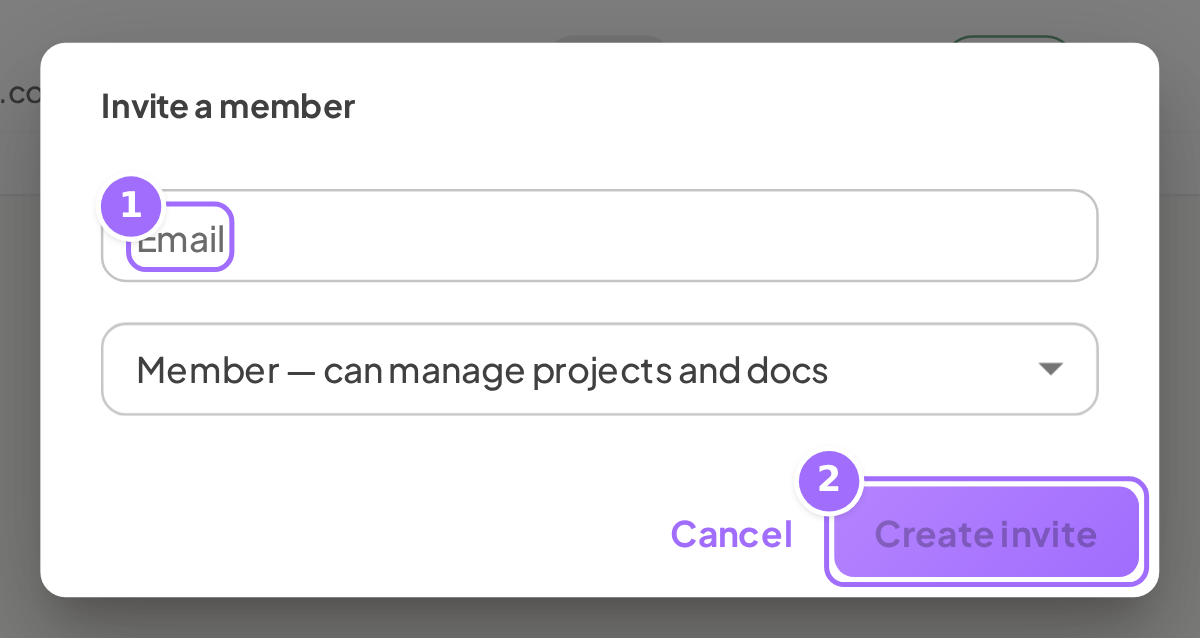
- In Invite a member, enter the person's Email.
- Choose a role: Member — can manage projects and docs or Admin — can also manage members and keys.
- Click Create invite.

After the invite is created, the dialog shows Invite created — share this link with <email>. It expires in 7 days. Use the copy-link button to copy the invite link, then click Done.
Change a member's role
- Open Settings → Members.
- In the member's row, open the role dropdown.
- Choose admin or member.
Only the owner can change roles. Owners always show an owner chip and cannot be reassigned. If the change fails, Ellie shows Could not change the role.
Remove a member
- Open Settings → Members.
- In the member's row, click the trash icon with tooltip Remove member.
Only the owner can remove members. The remove control is not shown for owners or for your own account. If removal fails, Ellie shows Could not remove this member.
Withdraw a pending invite
- Open Settings → Members.
- In the invite row, click the trash icon with tooltip Withdraw invite.
If withdrawal fails, Ellie shows Could not withdraw the invite.
Billing
Go to Settings → Billing.
Use this tab to review your billing status and manage your plan. Starting an upgrade sends you to checkout. If checkout is cancelled, Ellie shows Checkout cancelled — nothing was charged.
If checkout succeeds, Ellie shows Thanks — your plan is active. It can take a few seconds to show here.
For prices, trial rules and cancelling, see Pricing, plans, trial and limits.
AI tools
Go to Settings → AI tools.
Use this tab to connect AI tools and to see and cut off the ones already connected. The tab includes setup for Claude, Claude Code, Cursor, ChatGPT and Other.
The Connected apps table lists each connected tool with App, Access, Approved by and Last used (Not yet if it has never been used). Click Disconnect on a row to cut that connection off immediately; Ellie confirms with <app name> disconnected, or shows Could not disconnect. Before anything is connected, the table says No AI tools connected yet. A Recent activity list below shows what connected tools and API keys did recently.
You can disconnect an app you approved yourself. Owners and admins can disconnect any app.
If you need a key for an AI tool that cannot sign in through the browser, use Settings → API keys.
API keys
Go to Settings → API keys.

API keys are for CI, scripts, and some AI tool setups.
To create a key, choose an access level and copy it, see Create and use API keys.
| Area | What it does |
|---|---|
| Existing keys list | Each key row shows its name, an access-level chip (Read only, Read and draft, Full content or Admin (REST API)), Last used <date> or Never used, and, for owners and admins, a trash icon that revokes the key |
| Create a key | Owners and admins type a name in the field with placeholder Key name (e.g. Cursor, CI), choose an access level, and click Create key |
| New key result | Shows the plaintext key once after creation |
Full content on this tab is the same access level that the consent page shown when an AI tool connects calls Full content access.
The tab explains:
- Content keys work with the MCP server for AI tools that cannot sign in through the browser.
- Admin keys open the whole workspace API for CI and scripts.
When you create a key, Ellie shows the plaintext key once with the message Copy this key now. It won't be shown again. If creation fails, Ellie shows Could not create the key. If revoking fails, Ellie shows Could not revoke the key.
GitHub
Go to Settings → GitHub.
Use this tab to review GitHub connections for the workspace. Each connected GitHub account appears with a Connected chip. Owners and admins see a Connect GitHub button, which becomes Add repositories once an installation exists. If starting the install fails, Ellie shows Could not start the GitHub install. Ellie reads your repos read-only through the Ellie Docs GitHub App and only the repos you grant.
When you connect GitHub, the tab shows GitHub connected on success. If the installation cannot be linked, it shows Could not link the GitHub installation; try starting the install again from Settings → GitHub.
There is no disconnect button for GitHub installations in workspace settings.
Good to know
Who can change workspace settings? Owners and admins can rename the workspace, invite people, create API keys, and connect GitHub. Members can view every tab but do not get edit controls. Members can still disconnect AI tools they approved themselves.
How long do invites last? Each invite link expires in 7 days. Re-inviting the same pending email replaces the old link with a fresh 7-day link and resets the role.
What happens if the invite email is not delivered? The invite is still created, and you can share the copyable invite link from the dialog.
Can an owner be changed or removed from the Members tab? No. Owners cannot be reassigned or removed.