
To invite a teammate to your workspace, open Settings → Members, send an invite, and choose the right role for what they need to do. This article shows how to invite someone, what each role can do, and how to change a role or remove access later.
Step by step
- Go to Settings → Members.
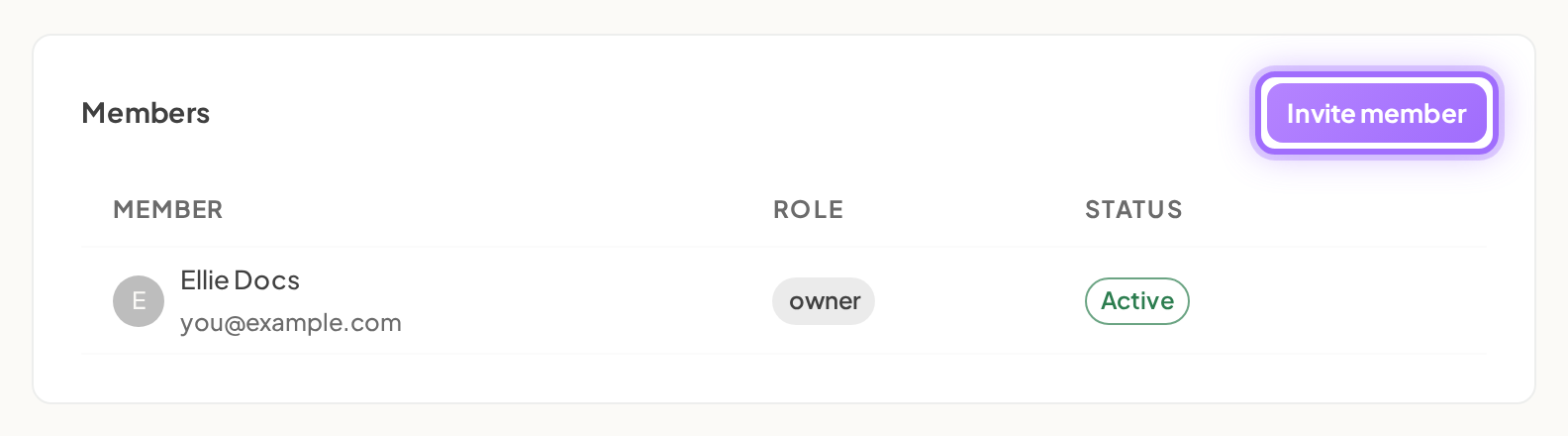
- Click Invite member.
- In Invite a member, enter the teammate’s email in Email.
- Choose a role:
- Member — can manage projects and docs
- Admin — can also manage members and keys
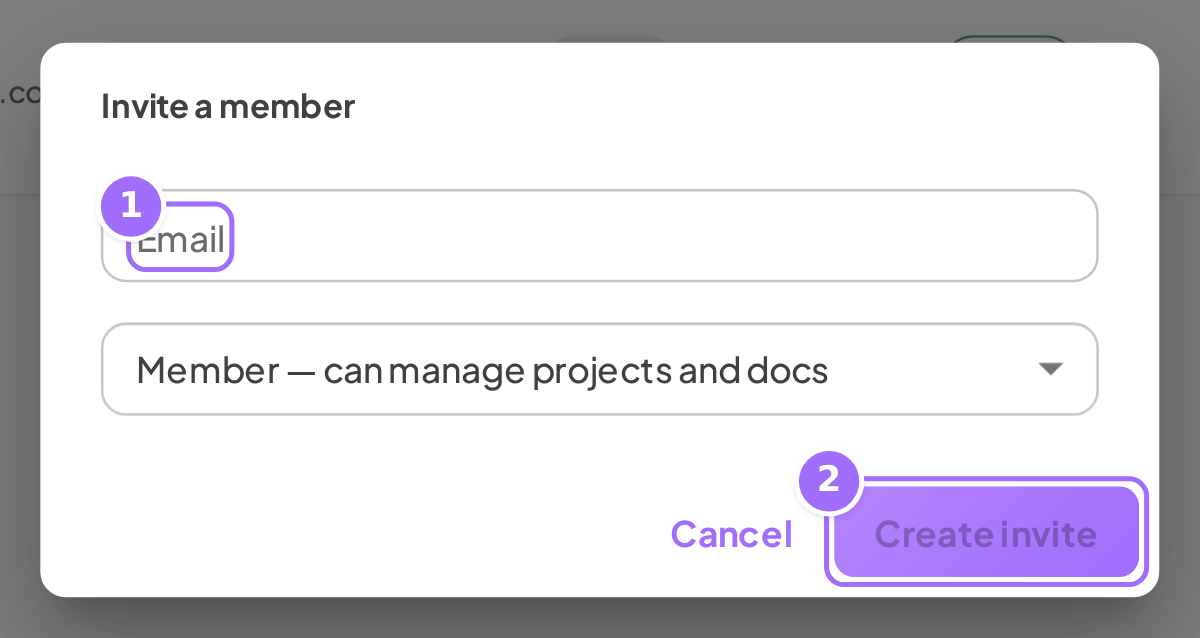
- Click Create invite.
- When the dialog shows Invite created with the teammate's email address and a note that the link expires in 7 days (the full message reads Invite created — share this link with the email address, then It expires in 7 days.), copy the invite link shown there.
- Click Done.
- Back on Members, check the Status column:
- active people show Active
- pending invites show Invited · expires followed by the expiry date


Roles
| Role | What they can do |
|---|---|
| owner | Everything in the workspace, including changing roles and removing members |
| admin | Rename the workspace, invite people, create API keys, connect GitHub, and change the plan |
| member | Manage projects and docs, and view every Settings tab, but no edit controls |
Change a member's role
Only the owner can change roles.
- Go to Settings → Members.
- On the person’s row, open the role dropdown.
- Select admin or member.
Owners always appear as owner and cannot be reassigned.
Remove a member or withdraw an invite
Remove a member
Only the owner can remove members.
- Go to Settings → Members.
- On the member’s row, click the trash icon with tooltip Remove member.
Withdraw an invite
Owners and admins can withdraw pending invites.
- Go to Settings → Members.
- On the invite row, click the trash icon with tooltip Withdraw invite.
Good to know
How long does an invite last? Invites expire in 7 days.
What if the email is not delivered? After you create the invite, copy the link from the confirmation message and share it directly.
What if the person already has an account? You cannot invite that email address. Ellie shows This person already has an account.
Is there a per-seat charge? No. Ellie pricing is per workspace, so adding teammates does not change what you pay.
What does my teammate see when they open the link? They see an invitation to join your workspace as a member or an admin, then set Your name and Choose a password to join. See Accept an invitation to a workspace.
What if the link says it has expired? Create the invite again for the same email address. A new invite replaces the old one, refreshes the 7-day expiry, and resets the role on the pending invite.
For the full list of workspace settings tabs, see Workspace settings reference.