
Use project environment variables to give Ellie's test copy of your app the settings it needs for screenshots and walkthrough videos. You can also turn on features in the test copy that are off until the right variable is set.
Step by step
- Open Project → Settings → Advanced.
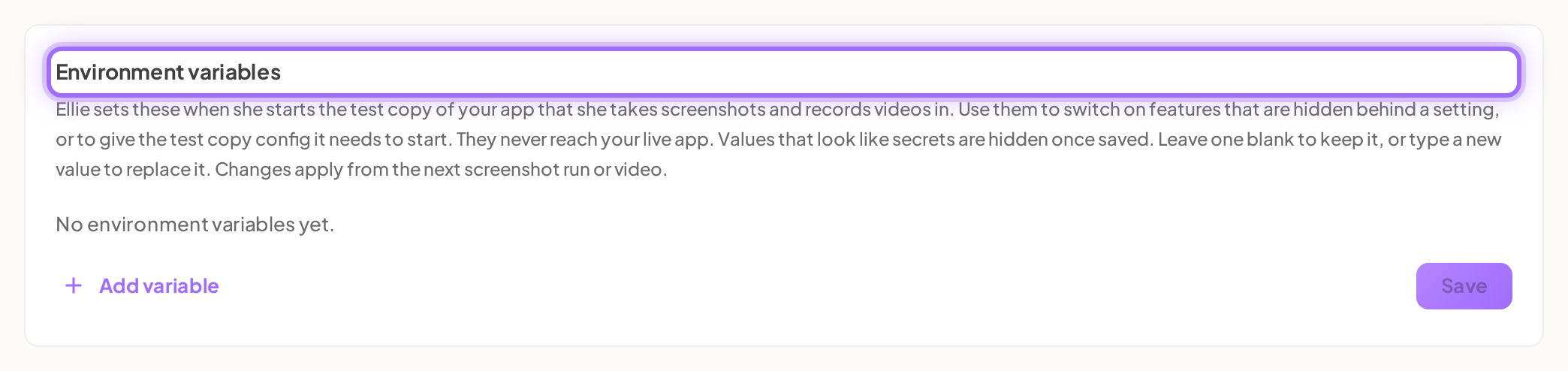
- In Environment variables, add a row with Add variable if you need a new one.
- Enter the variable name in the field with the NAME placeholder, then enter its value in the value field.
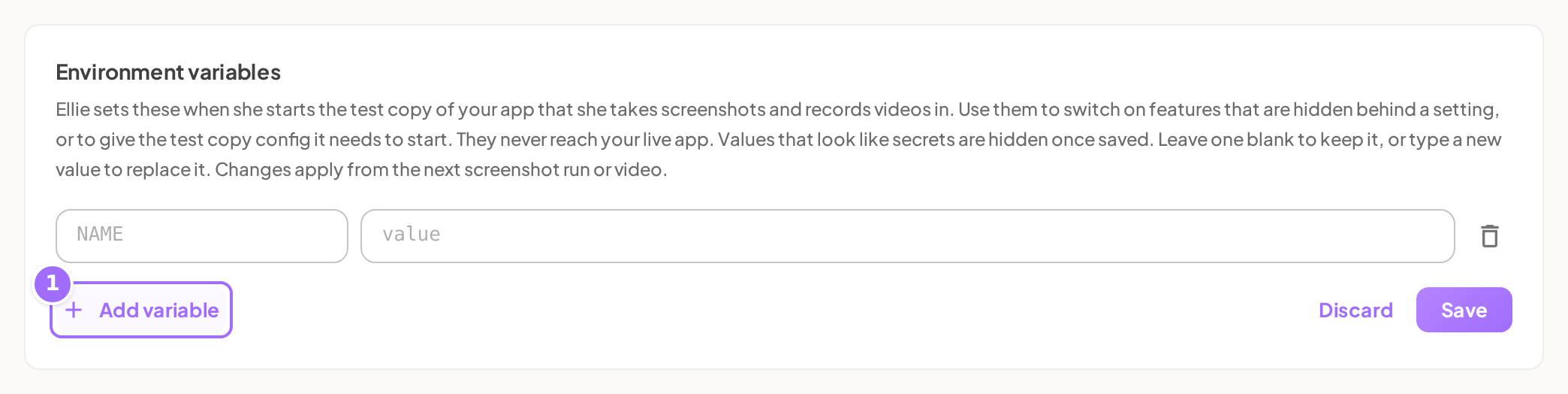
- Repeat for any other variables you need, then click Save.
- To change an existing variable, edit its row and click Save.
- For saved values that are hidden, the value field shows Hidden. Leave blank to keep it. Leave it blank to keep the stored value, type a new value to replace it, or delete the row if you want to remove that variable entirely.
- To remove a variable, click the bin icon on that row, then click Save.
- If you want to undo unsaved edits before saving, click Discard.


Good to know
- These variables are only passed to Ellie's test copy of your app. They never reach your live app, and projects that take screenshots from your live app don't use them.
- Variable names can use letters, digits, and underscores, but cannot start with a digit. Duplicate names are not allowed. If there is a problem, you'll see an error such as "1-BAD" isn't a valid name. Use letters, digits and underscores, not starting with a digit. or MY_VAR is listed twice. You must fix the problem before you can save.
- You can save up to 100 variables. Each value is text and can be up to 8,192 characters.
- After saving, you'll see Saved. The next screenshot run or video will use these. Changes apply to the next screenshot run or video only; existing screenshots and videos are not updated automatically.
- If no repository is connected yet, there is no test copy to pass these to. The variables will take effect once you connect GitHub. For that setup, see Connect GitHub and choose your repositories.
If a screenshot run or walkthrough video cannot reach a page or misses a feature, the test copy often needs an environment variable for that part of your app.
If your project uses an Ellie sandbox copy, Ellie stores the test login it creates in this list as E2E_TEST_EMAIL and E2E_TEST_PASSWORD, so you will see them here (the password value is hidden). Ellie uses them to sign in to the test copy. Editing or deleting them can break that sign-in, so leave them as they are.
Troubleshooting
Why does a page in my screenshot run or video return 404 or miss a feature? This usually means the test copy needs an environment variable for that feature. Add it in Project → Settings → Advanced → Environment variables, click Save, and retry the screenshot run or video.