
You can review what Ellie drafted from recent code pushes, decide what belongs in a customer-facing edition, and publish only when you are ready. This helps you keep your changelog current without letting anything go live automatically.
Step by step
- Open Changelog in your project sidebar.
- If a draft edition is waiting, the sidebar item shows a count.
- Before anything is drafted, you can see how many changes are banked, how many were filtered out as noise, and how many are held because they are not live yet.
- Start from the state you are in:
- If you want Ellie to turn banked changes into a dated edition, select Draft it now.
- If you want to add an update yourself instead, select Write your own entry.
- Review the draft edition.
- At the top of the draft, Ellie shows how many entries are ready to publish and how many need your eye.
- You can also use Write your own to add an entry yourself or Recompose to have Ellie redraft the edition.
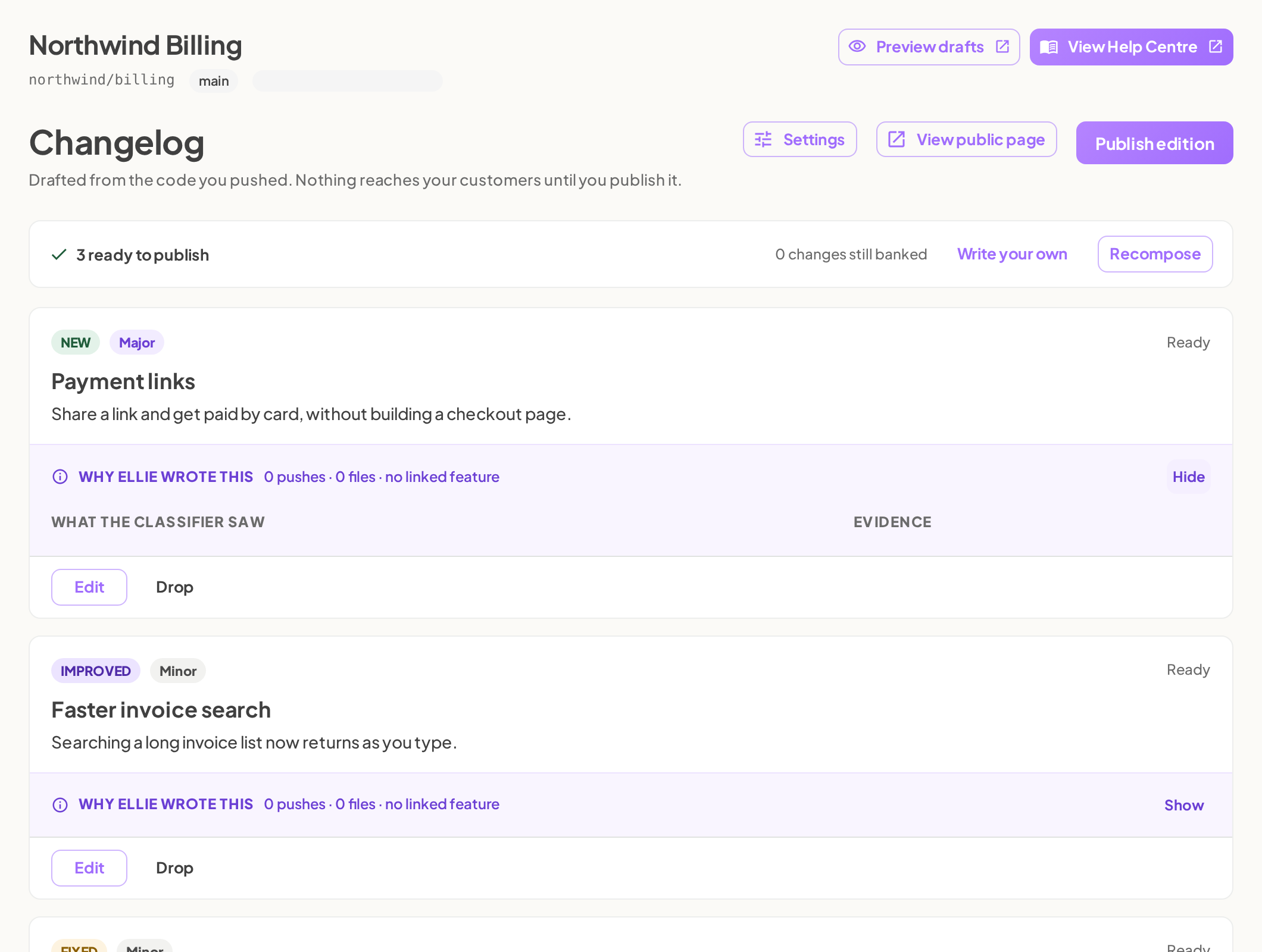
- Check each entry before you publish it.
- Each draft entry includes a label: NEW, IMPROVED, FIXED, REMOVED, DEPRECATED, or SECURITY.
- Each entry also shows its impact as Major or Minor.
- If Ellie has confirmed the change is available, the entry shows Live for customers.
- If Ellie is unsure about an entry, it shows an amber banner explaining why that entry needs your attention.
- Use Why Ellie wrote this when you need more context.
- Under each entry, Ellie shows how many pushes and files contributed to it and which feature it relates to.
- Select Show to see what the analysis observed and which files changed.
- Keep, revise, or remove draft entries.
- Use Edit on a draft entry if you need to change it.
- Use Drop if the entry should not be part of this edition.
- Publish when the edition is ready.
- Select Publish edition.
- Nothing is published until you do this. Ellie never publishes on its own.

Edit an entry
Select Edit on an entry. You can change:
- Title — a headline under 72 characters, with no full stop
- What changed for your customer
- Kind
- Impact — Major or Minor
You can also choose how help articles are linked:
- Link automatically is the default and links whatever published help article covers the feature, including one published after the entry.
- Choose articles lets you pick up to two articles, or none.
To add an image, select Add an image. You can Replace or Remove it later. Describe the image for screen readers. The image appears above the entry on your public changelog, in the widget, and in the feeds.
Write your own entry
Use Write your own entry for things your code cannot tell Ellie about, such as pricing, policy, or a migration customers need to know about. Enter Title, What changed for your customer, and Kind, then select Add to edition.
Answer held changes
If a change sits behind a feature flag, Ellie holds it until you confirm it is live. Answer Live for everyone, Rolling out or Not yet. Confirmed changes join the next edition. Your answer also decides whether help articles for that feature can publish.
Change an edition after publishing
Publishing an edition puts its entries on your public changelog, its RSS and JSON feeds, and the in-app widget. Published editions are listed under Published at the bottom of the Changelog page — select a date to open one. Then:
- Edit on an entry: saving updates the live page straight away, and the entry stays published.
- Add an entry: adds a new entry to that edition, and it goes live as soon as you add it.
- Remove this edition: takes its entries off your changelog, feeds and widget. Ellie will not announce those changes again.
For the public changelog page, the in-app widget and when Ellie drafts, see Set up your changelog and What's new widget.