
You can keep specific folders or file patterns out of repository analysis for a project. This helps you focus Ellie on the parts of your codebase that should shape your docs.
Step by step
- Open your project, then go to Settings → Repositories.
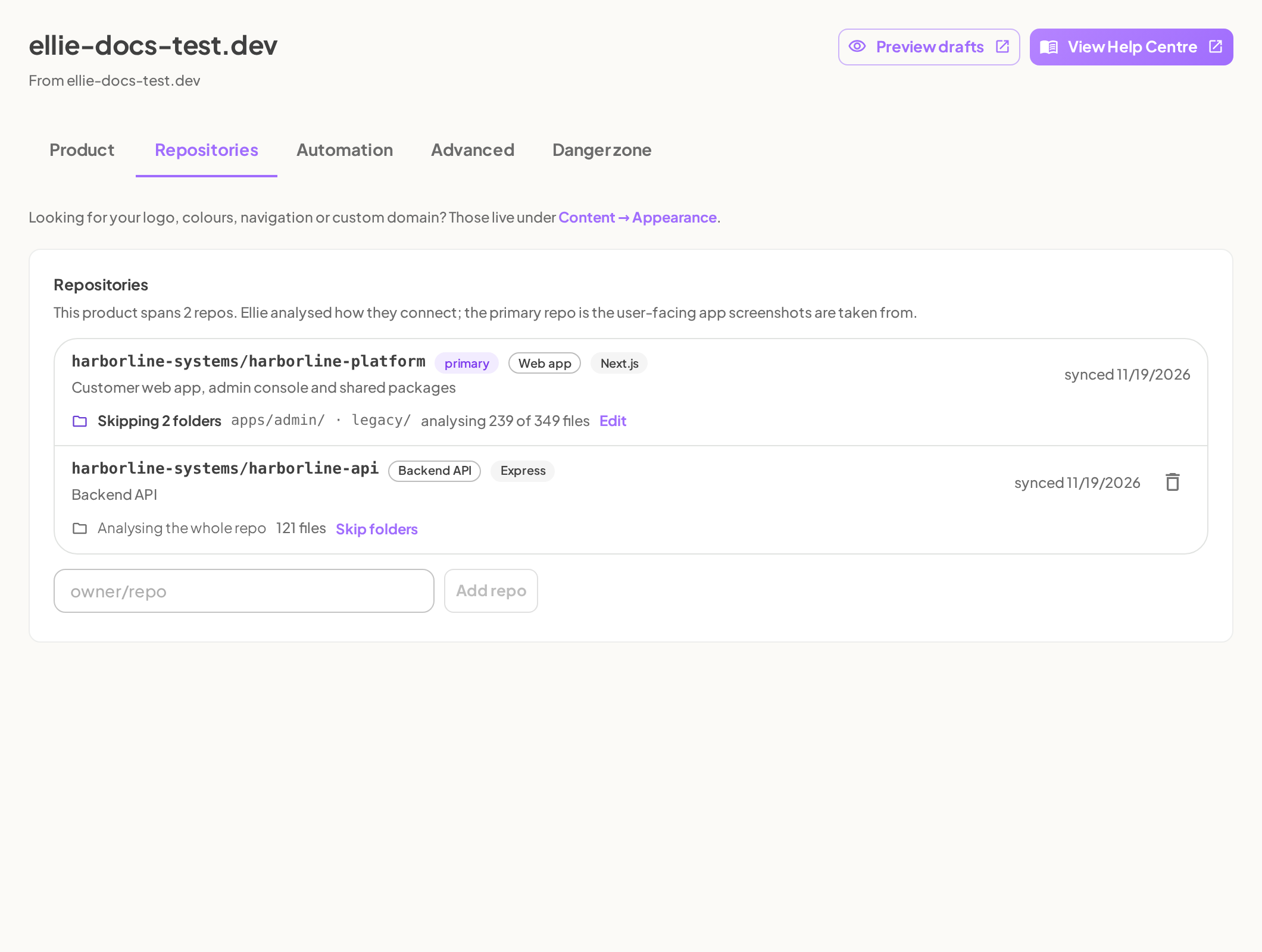
- Find the repository you want to change, then click Skip folders or Edit on its exclusion line.
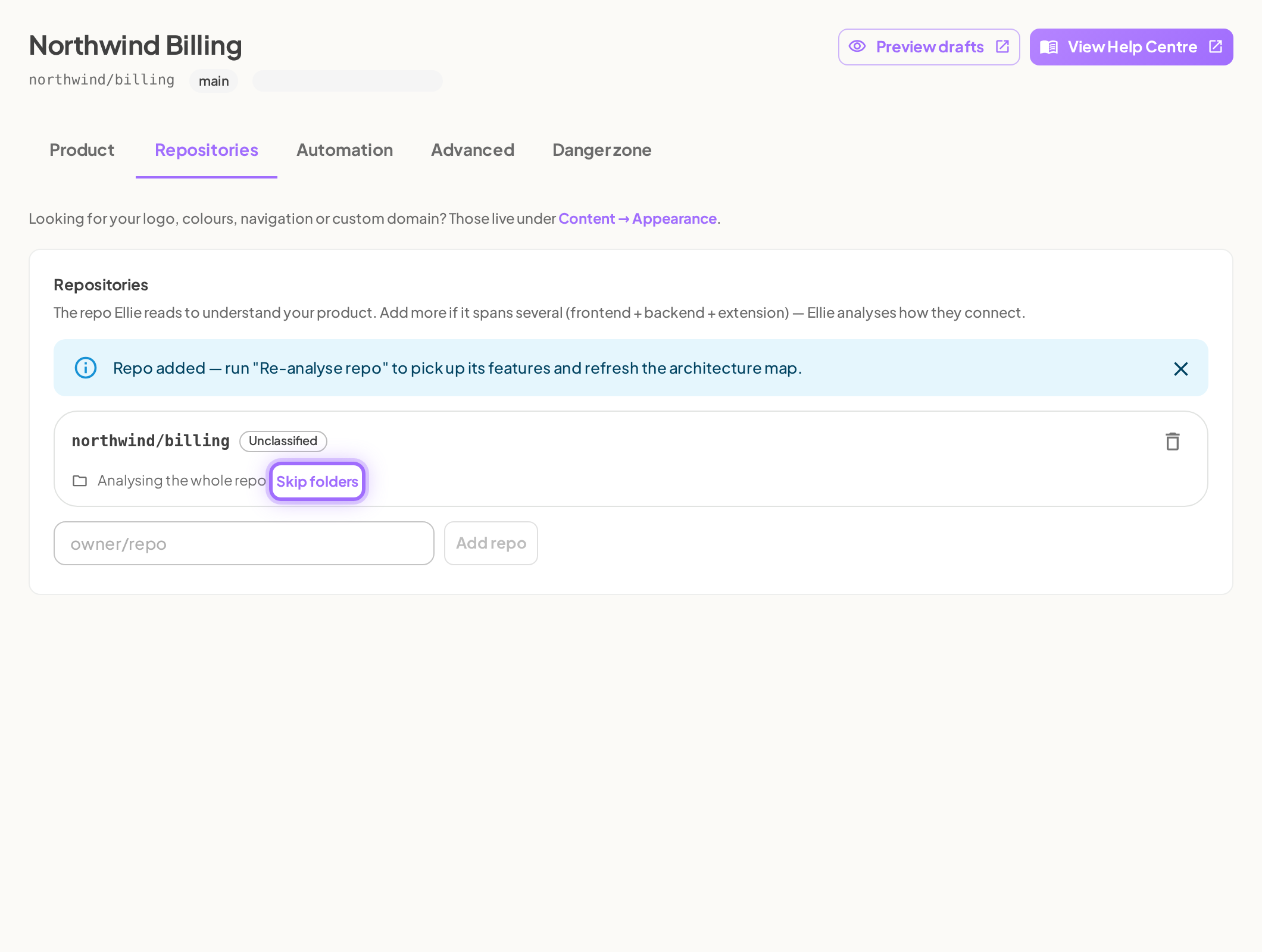
- In the exclusions dialog, choose the folders you want to skip. If the dialog is showing patterns instead of a folder tree, enter the patterns you want to exclude there.
- Click Save.
- Review the impact dialog, then confirm the change.


Common ways to use exclusions
Teams typically exclude parts of a repository that should not drive help-centre content, such as generated output, vendor code, or folders unrelated to the product surface you document.
If you want Ellie to focus on only part of a repository, the exclusion settings can also switch the repo to analysing only selected folders instead of the whole repo.
What changes after you save exclusions
Saving exclusions changes which files are analysed for that repository. The repository summary updates to show what Ellie is analysing, such as the whole repo, only selected folders, or skipped folders, along with the number of files being analysed.
Your saved change can also trigger reanalysis for that repository, and content affected by the excluded source can be updated to reflect the new scope.
Good to know
- Exclusions are set per repository, not once for the whole project.
- The same exclusions dialog is also available during onboarding when you connect repositories.
See also: What code Ellie reads and what it never reads and Project settings reference