
Set up your existing docs sources in onboarding so Ellie can read your website, record where your docs live today, and optionally import your current help centre as draft articles while code reading continues in the background. This is for anyone creating a project.
Step by step
- In onboarding, open Your docs.
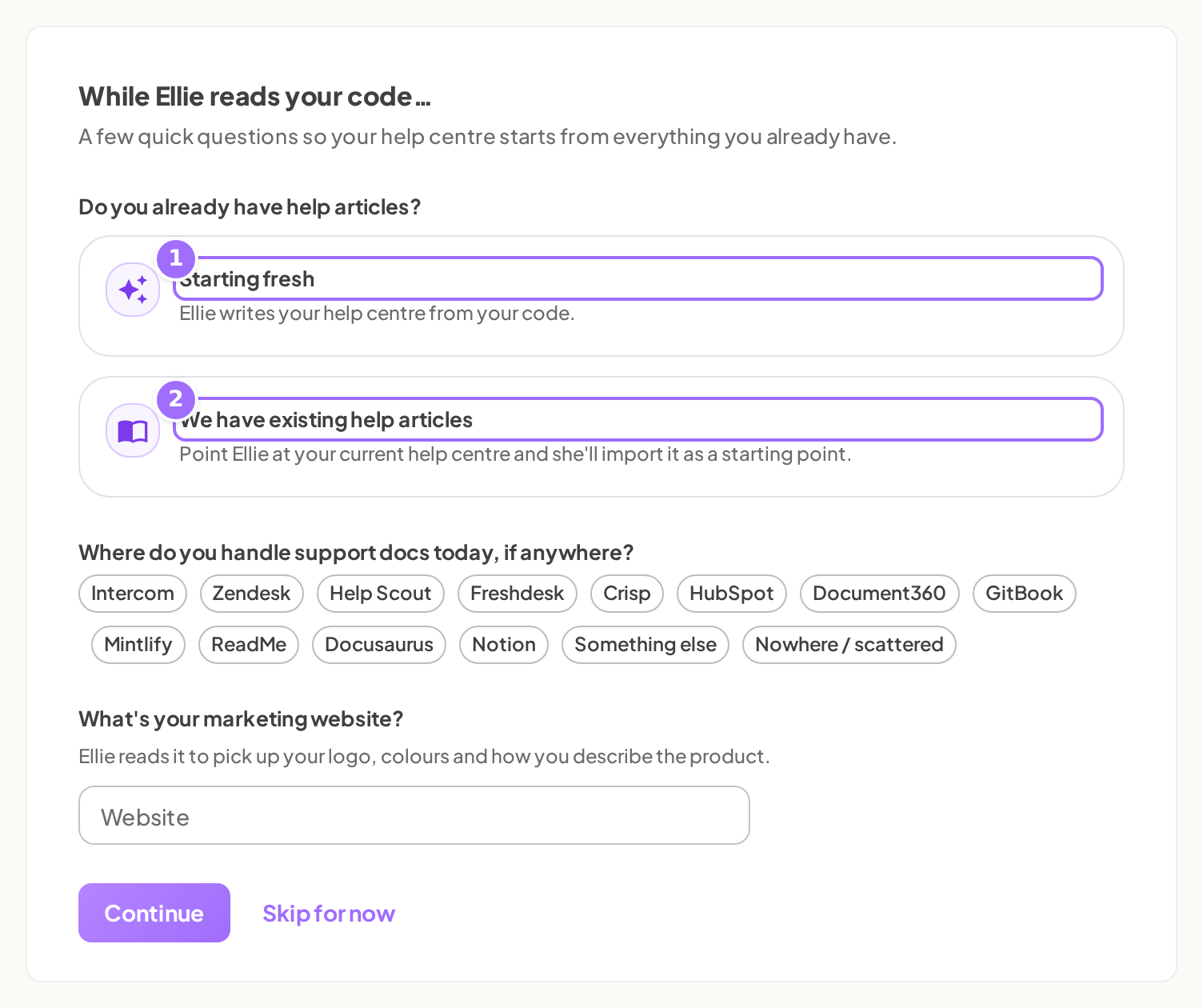
- Review the heading While Ellie reads your code….
- Review the note A few quick questions so your help centre starts from everything you already have.
- Choose Starting fresh or We have existing help articles under Do you already have help articles?
- If you chose We have existing help articles, enter Help centre URL.
- If you want Ellie to import from that address, leave Import these articles as a starting point (recommended) — they land as drafts, nothing is published until you review it ticked.
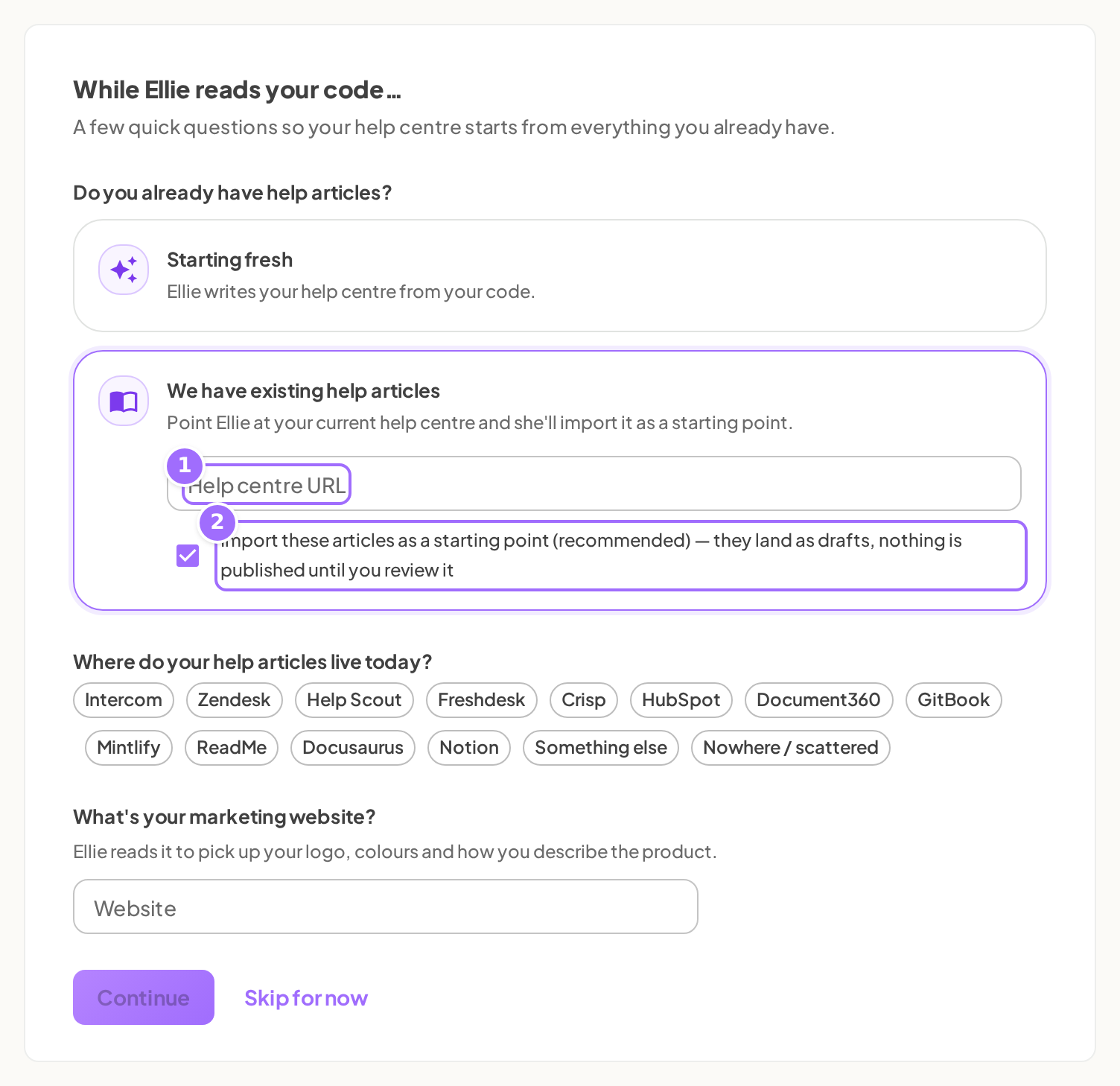
- If you only want to save the address without importing, untick Import these articles as a starting point (recommended) — they land as drafts, nothing is published until you review it.
- Choose a tool under Where do your help articles live today? or Where do you handle support docs today, if anywhere?
- If you chose Something else, enter Which tool?
- Enter Website under What's your marketing website?
- Select Continue.
- Select Skip for now to skip every answer and move on.


Good to know
- What does each help-articles option do? Starting fresh means Ellie writes your help centre from your code. We have existing help articles means Point Ellie at your current help centre and she'll import it as a starting point.
- Are these questions required? No. Every question on this step is optional, and Ellie keeps reading your code while you answer.
- What can I choose for where my docs live today? The single-select options are Intercom, Zendesk, Help Scout, Freshdesk, Crisp, HubSpot, Document360, GitBook, Mintlify, ReadMe, Docusaurus, Notion, Something else, and Nowhere / scattered.
- Does choosing a tool connect Ellie to it? No. The tool choice is only a record of what you use. It does not connect to that tool, ask for a login, or change how the import works.
- What are the address rules? A bare domain such as
tryellie.comis accepted and treated ashttps://. The address must be a valid, publicly reachablehttp(s)URL. Internal or private addresses will not work. - What validation messages can I see? If Help centre URL does not look like an address, Ellie shows Enter the address of your help centre home page. If Website is invalid, Ellie shows Enter your public website address. On save, an invalid public URL is refused with
<field> must be a valid, publicly reachable http(s) URL. - When is Continue disabled? Continue is disabled while an address looks invalid, or if you chose existing articles with import ticked but left Help centre URL empty.
- What happens when Ellie reads my website? The progress label is Reading your website. Ellie reads your home page plus up to 4 more pages on the same site whose address looks like
/pricing,/about,/about-us,/features,/product,/how-it-worksor/why. Ellie extracts your product name, description, accent colour, logo and tone. Website reading only fills branding fields that are still empty, never overwrites ones you set, and also feeds the product profile and article tone. - What happens when Ellie imports my help centre? The progress label is Importing your help centre. Ellie follows
robots.txt, uses your sitemap if available, otherwise follows links from the address you gave, imports at most 200 pages, and converts each page to an article. Pages Ellie cannot read are skipped, and the result says how many with N pages skipped. - What do imported articles look like? Imported articles arrive as unpublished drafts with the status needs review, grouped into collections. Each keeps its source address in history as
Imported from <url>. Nothing is published automatically. - Will importing duplicate or overwrite articles? No. If an imported article address already exists, Ellie does not duplicate it, so re-running an import never overwrites your edits.
- Can setup continue if a read or import fails? Yes. Neither background job can block setup. If there is no website, the stage shows No marketing website given. If there is no help-centre address, the stage shows No existing help centre given.
- What confirmations can I see later when I run these from settings? Starting a website read shows Website read started — progress shows on the Overview checklist. Starting an import shows Import started — progress shows on the Overview checklist. Imported articles land as drafts. If one is already running, Ellie shows Already running — progress shows on the Overview checklist.
- Where can I change these later? Go to Project → Settings → Product → Sources. Use Marketing website and Existing help centre URL, then select Read website, Import as drafts, or Save.
- What appears on the Overview checklist if I skipped this step? The greyed rows say No marketing website given — add one under Settings → Sources and Ellie will pick up your logo, colours and wording. and Nothing to import — you started fresh. Add an existing help-centre URL under Settings → Sources to pull it in as drafts.
- What happens if saving fails? Ellie shows Could not save your answers — please try again or the server message.
- Are there any limits? Yes. Which tool? is limited to 200 characters, and help-centre import is limited to 200 pages.