
Set up your first project, connect the repositories that make up your product, and let Ellie draft your help centre. By the end, you can review drafts or publish them to your public help centre.
Step by step
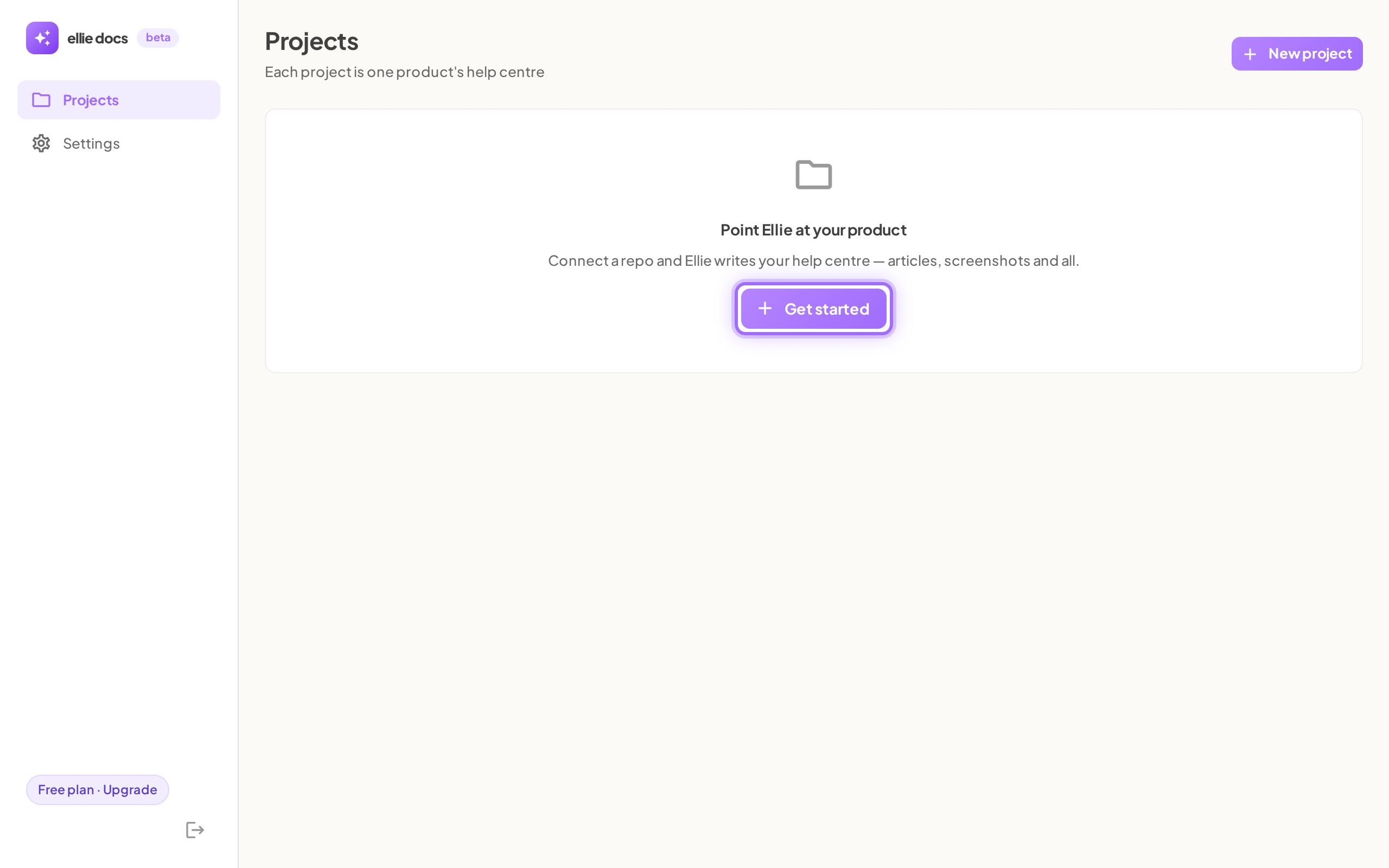
- Open Projects from the sidebar.
- Click Get started if you have no projects yet, or New project if you already have one.
- In Connect, click Connect GitHub.
- Install the Ellie Docs GitHub App.
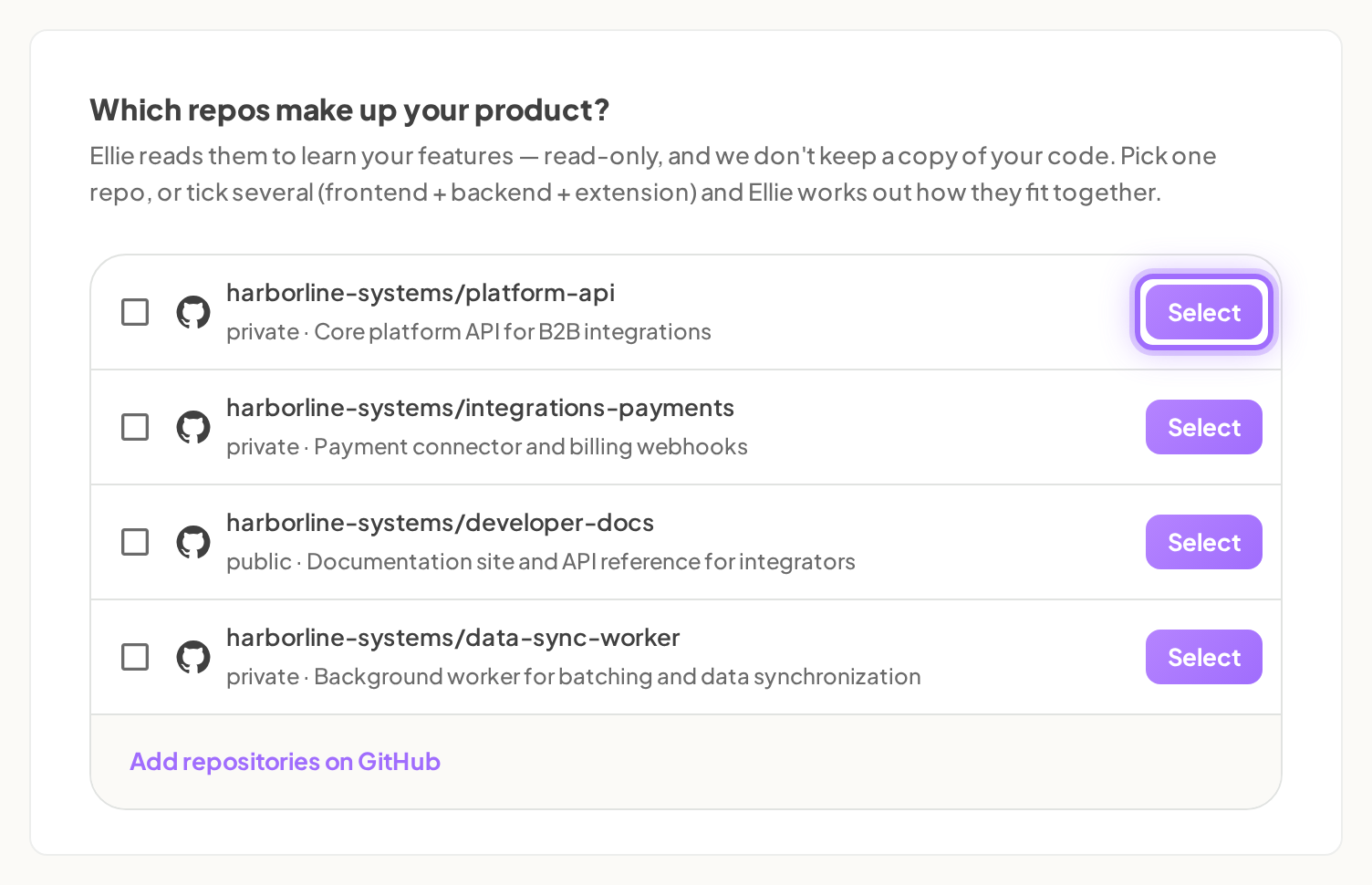
- Select the repositories that make up your product.
- If you are connecting one repository, click Select on that repo.
- If you are connecting multiple repositories, tick the repos you want and click Analyse {n} repos as one product.
- In Your docs, choose whether you are Starting fresh or We have existing help articles.
- If you already have help articles, enter your Help centre URL and leave import selected if you want imported articles to arrive as drafts.
- Choose where your support docs live today, such as Intercom or Zendesk.
- Enter your marketing website if you want Ellie to read it.
- Click Continue, or click Skip for now to move on without adding these details.
- In Understand, review what Ellie found about your product.
- Click That's right → if the summary is correct.
- If you need to change it, click Edit details, update What is your product? and Tone notes (optional), then click Save and continue →.
- In App access, choose how Ellie should take screenshots.
- To use Ellie’s hosted test environment, choose Run a sandbox copy for me (recommended).
- To use your live app, choose Use my live app and enter App URL plus an email and password.
- To continue without screenshots, choose Skip screenshots for now.
- Click Continue.
- In Write docs, let Ellie finish drafting your help centre.
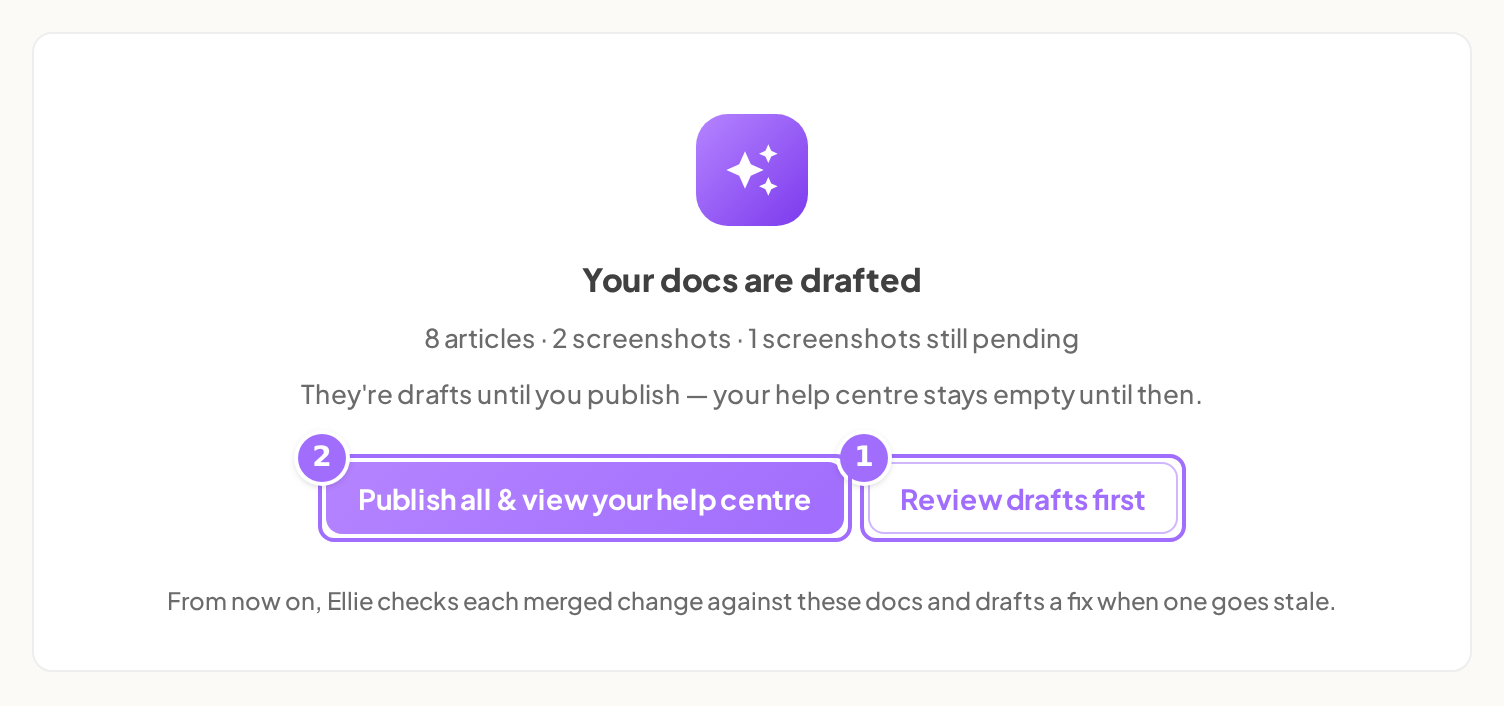
- On Your docs are drafted, click Review drafts first to open the project, or click Publish all & view your help centre to publish immediately.


Good to know
What if I close onboarding before it finishes? Onboarding resumes where you left off. The current step is kept in the URL, so you can reopen it and continue.
What if Ellie cannot read my repository? In Understand, you can use Retry. If Ellie reports that it couldn’t access the repository, check that the Ellie Docs GitHub App has access to it.
What if writing finishes with no drafts? Use Go to project and re-run writing from the project. If it keeps happening, reply to any Ellie Docs email.
Why can’t I create another project? Projects are limited by plan: Free 1, Starter 1, Growth 3, Scale 10. If you hit the limit, creation fails with: The <Plan> plan includes N project(s) — upgrade to add more.